Last Updated on February 21, 2026
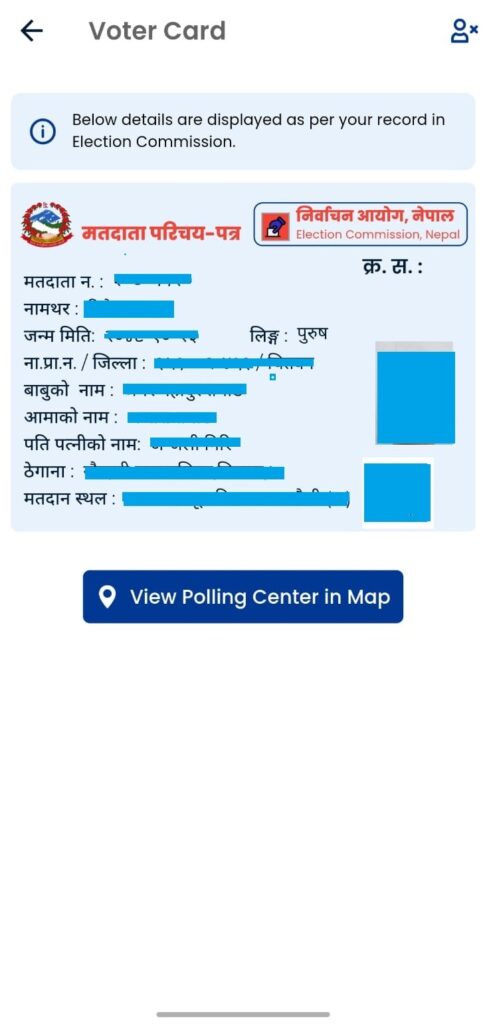
Nagarik App now lets you take a screenshot of your voter ID. The facility has been unlocked to facilitate users for the upcoming elections on Falgun 21.
The feature is available on the app’s latest update, version 2.0.90. If you can’t take a screenshot of your voter ID, then you should update the app first. Currently, the features are available on Android only. A plan is in place to roll it out to iOS users very soon.

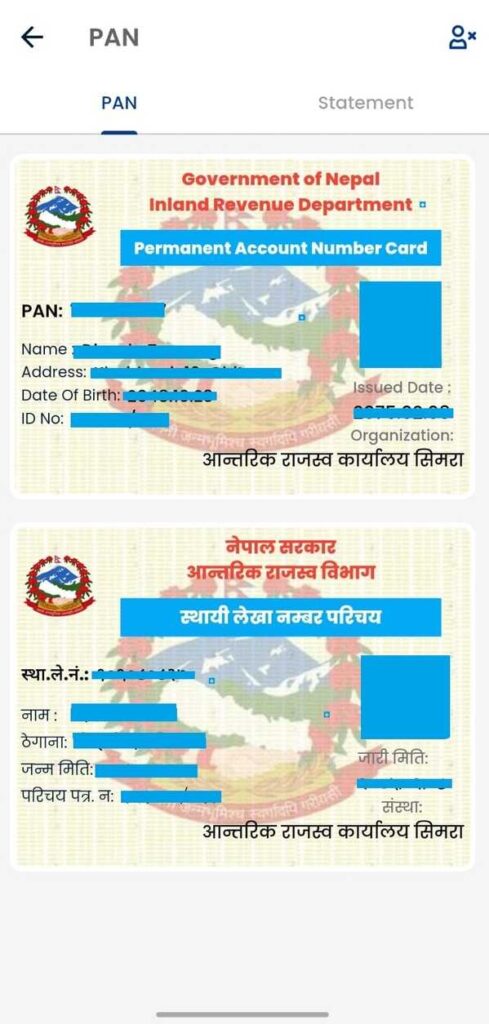
As you know, the app doesn’t allow screenshots. So, I checked myself and found that the screenshot feature is made available for voter ID and PAN card. I am not sure if the facility for the latter is intentional. Still, you can’t take a screenshot of the National ID, citizenship, passport, and your driving license.
For your reference, here are the screenshots of my voter ID and PAN I took a few minutes ago.
Why is it going to be useful?
Having a screenshot of your voter ID can be extremely useful at the polling station on Falgun 21, 2082. Because voter ID is a mandatory document to carry for all eligible voters. Just in case, you don’t carry or forget to bring your physical voter ID card, the one on the Nagarik app will get you through.
You can print a copy of the screenshot of your voter ID to authenticate your voting eligibility at your polling station. Earlier, the government allowed registration of voter ID with National ID number, and now, the screenshot feature further strengthens the use case for the popular government app.
How to take a screenshot of the Voter ID on Nagarik App?
Here are the steps to take a screenshot of your Voter ID on Nagarik App:
- Open the Nagarik App on your phone
- Find and tap Voter ID
- Take a screenshot of the page
PS: Depending on your phone model, you can either press the volume down and power buttons simultaneously or scroll three fingers down the screen to take the screenshot. There could be other methods too, depending on the brands and their OS versions.
Don’t miss: Check your voter ID details online
Why can’t I take a Voter Card screenshot on Nagarik App?
As said above, you first need to update the Nagarik App to its latest version. Otherwise, the steps won’t work. Besides, if you are on iPhones or other iOS devices, then you will have to wait a few days for it.
We suggest they you take a screenshot of your voter ID and save it on your smartphone. In case you don’t bring the official physical copy, this digital copy will be super useful for you.
If you have further queries, let us know in the comments below.