Last Updated on March 3, 2022
Have you ever used the Automatic Network Switch feature on your smartphone? This intelligent feature allows you to resume internet on mobile data when your WiFi signal drops ensuring stable internet connectivity.
This is actually not an alien feature but it is possible that you may not have been explicitly aware of it. This feature allows you to stay connected to the internet by transitioning from WiFi to cellular data. That is whenever your internet connection suffers a poor signal, your device makes a switch to another. For better illustration, let’s say your WiFi network drops signal, or disconnects, with an automatic switch, your device connects itself to mobile data.

Modern-day households have WiFi, and most use it for browsing, downloading, and media consumption because they come with an unlimited bandwidth plan. But the network switching does have its advantages and many use it on their devices
Related: Being ‘Always Online With Mobile Data: Pros And Cons
Advantages of Automatic Network Switch
Auto Network Switch enables a stable connection on your device and limits connection drop. It allows you to browse the internet or continue any activity online without worrying about connection loss or disconnection. For an instance, you may be on Chrome browsing the net, downloading music, or Facetiming on your iPhone. But if your WiFi loses connection, your connection halts.
With Auto Network Switch, however, you need not worry. Because whenever your WiFi network suffers a signal drop, it switches to mobile data itself without your intervention. You won’t suffer disconnection while downloading a file, gaming or video calling, or anything else. It ensures a stable internet connection and improves download and upload speeds in some cases. Find Mobile data or Wifi; which one to prefer with pros and cons.
But this feature riggers mobile data for internet consumption and may not be ideal for those on lower data packs. WiFi offers an unlimited internet plan so using data can only be a temporary solution. This is why Auto Network Switch is a perfect utility for business professionals or those who work online who cannot afford to compromise their internet connection. Either one is on a short video conference call, urgent file download, or important meeting, this feature is for them.
Network switching comes in somewhat similar forms across all smartphones with a small variation on iOS and Android. We have covered briefly both of them below.
Learn: Meaning of Mobile Network Signs | G, E, 3G, H/H+, 4G, 5G, VoLTE
How to configure automatic network switch on Android?
Likewise, the Smart Network Switch is also available on Android for a smooth network switch between Wifi and mobile data. But this can be different depending on smartphone OEMs. On Samsung, you can follow the steps below to turn on Auto Network Switch.
- Go to Setting
- WiFi
- Turn on WiFi
- Click on three vertical dots for additional Setting
- Choose Advanced
- Click on Switch to Mobile Data.
Meanwhile, on Xiaomi devices, you can go to Setting > WiFi > WiFi Assistant > Select best networks automatically to turn this feature on. For other devices, these references will work as Android is almost uniform on all smartphone brands.

Automatic network swithc on iOS
On iPhones, you can find this feature under WiFi Assist. But this feature is only available on devices from iOS 9 and above. When toggled on, your device can transition to cellular data when you have poor WiFi connectivity. For this, you can check on your mobile’s status bar. You can see your cellular data icon there to notify you that WiFi Assist is active.

For the sake of our benefit, Apple has WiFi Assist on by default. but if you want to turn it off, and only use WiFi and don’t concern with occasional signal drops, or disconnection. Here are the steps.
Go to Settings > Cellular > Mobile Data > Scroll down and find WiFi Assist > Tap the slider to turn it off.
Check out: NTC VoLTE Available On iPhone: Do This To Activate
Be cautious though!
Although this feature sounds much appealing, it does have some demerits. When this feature is on, your network intelligently switches to mobile data from WiFi. So you won’t be aware that you are on mobile data, and you may end up losing your valuable data pack or even a balance cut in absence of it. So you can only use this feature as an add-on utility and stay aware of its status. Do check out the steps to save mobile data on your phone.
Another quibble is that this feature requires your mobile data to stay on for an efficient network switch. But this will play a part to drain the juice out of your battery. It is something you need to keep track of especially when you are out of a power backup.
The takeaway, on Android there is a smart feature called Mobile Data Always Active. If you toggle this feature, it will help for a more efficient transition from WiFi to mobile data. But this feature doesn’t come by default. You need to access Developer Options to turn it on. For it, you need to go to Setting > About phone > Build number > tap on it several times. This activates Developer options on your device. Depending on devices, Developer options can be found in Additional settings or at Settings > System > Advanced > Developer Options. There you can scroll down and find the Mobile Data Always Active option.
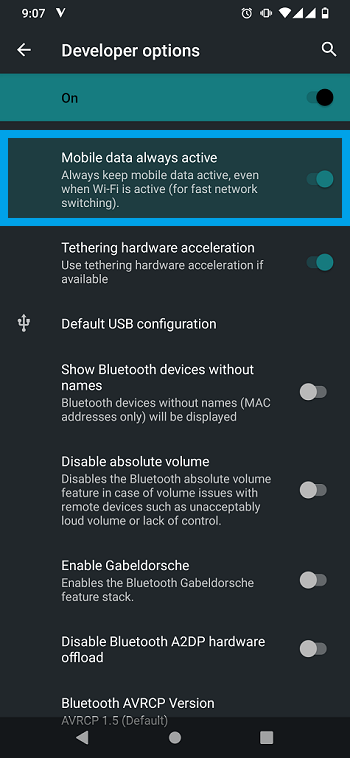
But as stated above, keeping your mobile data on all the time, may be detrimental to your device’s battery efficiency. So you need to ensure that you won’t be in trouble with a faster battery drain when you activate this feature. Once this feature is on Auto Network Switch do its job more efficiently providing you seamless intelligent internet connectivity on your smartphone.
If you want to add more to this post, do suggest it in the comments below.