Last Updated on August 25, 2024
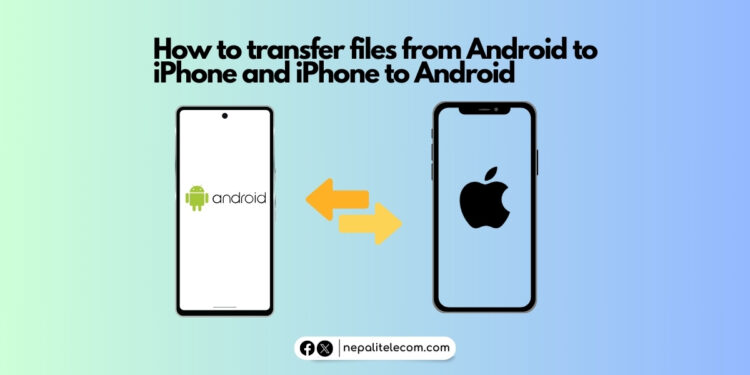
The smartphone world is dominated by Android and iPhones. But they run on different OS, thus creating a barrier for easy file transfer between each other. So, this article will be all about how to transfer files from Android to iPhone and iPhone to Android. Without further ado, let’s get started with all the possible ways of file transfer between Android and iPhone.
Do read: Android Vs iPhone: Which One Is Better for You?
How to transfer files from Android to iPhone?
In this era of technological advancements, there are several ways of transferring files from an Android phone to an iPhone or from an iPhone to an Android phone.
Method One:- Using a USB Cable (Android to iPhone)
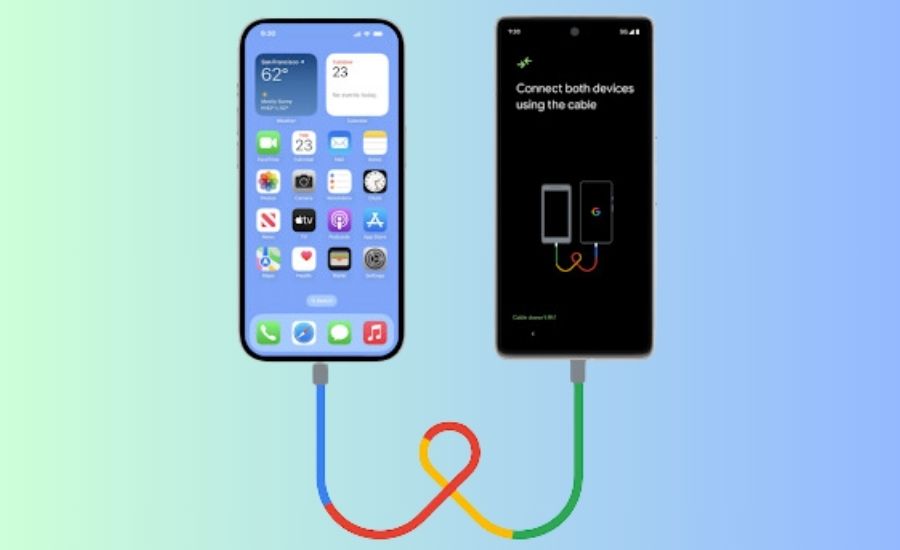
- The easiest way of transferring files from iPhone to Android is using a USB cable.
- If you are using the iPhone 15 Series, you need a USB-C to USB-C cable or if you are using an older iPhone, you need to have a USB-C to Lightning cable. And for your Android sometimes, you may need a USB OTG adapter for the (USB-A cable)
- Connect your iPhone to your Android.
- Then do follow the on-screen instructions and choose what to copy such as photos, messages, contacts, and more.
- Then, it’s done. And do note, this method is for transferring data from iPhone to Android.
Method Two:- Using Move to iOS App (Android to iPhone)
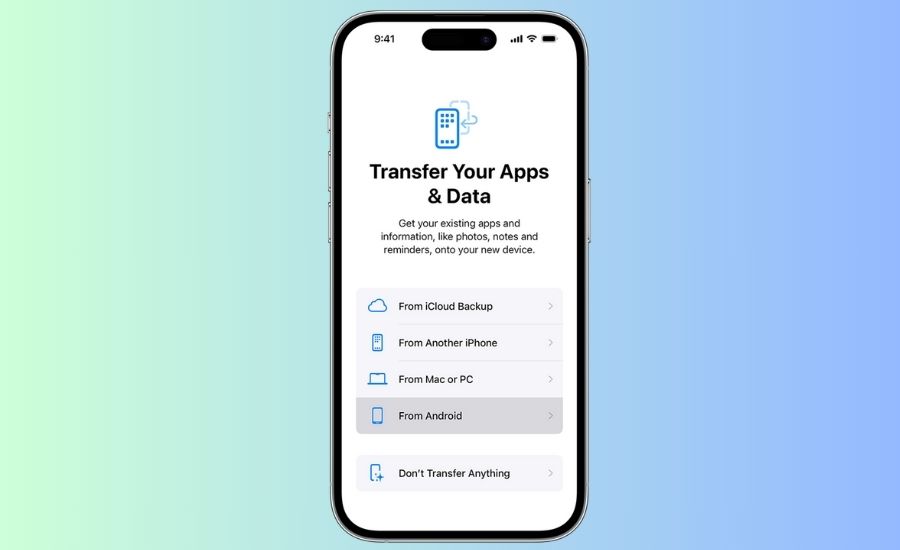
- Download the Move to iOS app on your Android phone.
- Also, make your iPhone ready and place it near your Android phone.
- Then, go to “Transfer Your Apps and Data Screen” and tap on the “From Android” option on your iPhone.
- After that, open the Move to iOS app on your Android phone and tap the QR code button on your iPhone, and scan the QR code on the Android phone.
- Tap continue and click on Agree to continue by reading all the terms and conditions.
- Then, continue with all the necessary permissions.
- On your iPhone, hit the Continue option when you see the Move from the Android screen.
- Then, you should wait for a ten-digit or six-digit code.
- Use that code on the Android device.
- After that, connect to a temporary WiFi hotspot created by your iPhone, from your Android phone.
- Then, select the data you want to transfer and wait until you finish it.
Method Three: Using WhatsApp/Viber/Telegram
- Using WhatsApp/Viber/Telegram, the world-famous messaging apps is an easy way of transferring files.
- You can send photos, videos, audio, and documents on all three messengers.
- To do so, you need to have your accounts logged in on both Android and iPhone.
- Then, you can send a message to yourself and attach files and documents.
- For messaging your own number, just simply, search your name or contact number in the search bar.
- Then, you can send original quality files, by sending your desired file using the document option.
- Or else, if your Android and iPhone have two different accounts, you can just simply send it to the respective number.
Do Check:- How To Transfer Files From Mobile To PC; 5 Handpicked Methods
Method Four:- Using Local Send
- What if I tell you, there is a wonderful app that is the best way of transferring files from Android to iPhone and vice-versa?
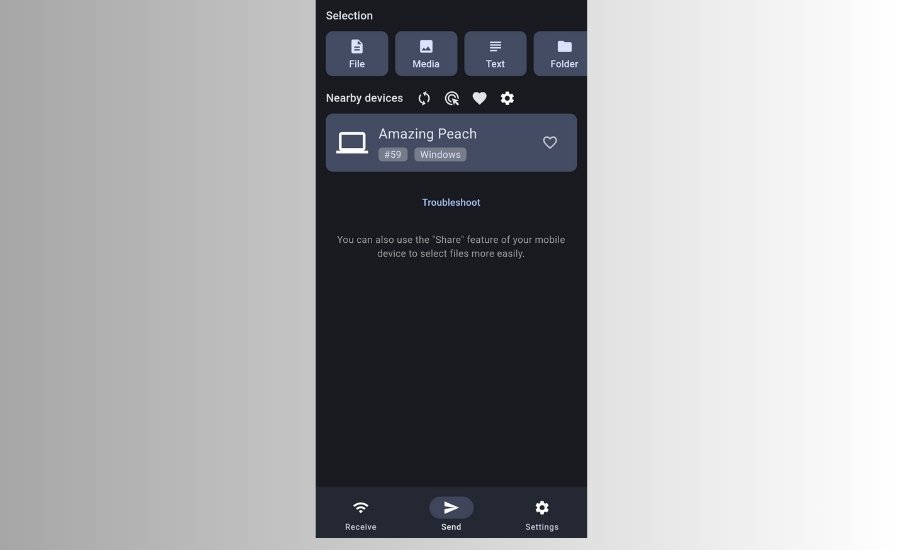
- The app’s name is Local Send and you need to install it on both of your Android and iPhone and set it up.
- After that, open the app, then choose the “Send” option, and select your desired files.
- Then, click on the device nickname of the other phone, and Voila! it’s done.
- This app is also useful to send files to your Windows or Macbook and vice-versa.
Also Check:- What is carrier lock on Phones? How to unlock it? Find Methods
Method Five:- Using online file transfer platforms
- Another way of transferring files from Android to iPhone is using the online platform.
- For this, we have, wetransfer, sendgb, and toffyshare websites.
- For file transfers of up to 2GB, you can use wetransfer.
- Meanwhile, for files up to 5GB, you can opt for sendgb.
- For bigger files, you can use the toffyshare website.
- Sending files from all the platforms is easy, select the desired files and click on the generate link button.
- Copy the link and open it from the other phone, you want to get your files on.
- And just download it and you’re done.

Also Read:- How to use Carrier Video Calling in Nepal